Find Facebook UID
How to Install the FBnumber Facebook Phone Number Finder
QUICK GUIDE
Step 1: Download the FBnumber Extension file to your computer, then extract it.
Step 2: Open the Extensions page in Chrome and turn on Developer mode.
Step 3: Load the extracted Fbnumber folder into the Extensions page in Chrome.
Step 4: Sign in to the extension and start scanning numbers.
FULL GUIDE: HOW TO INSTALL THE FBNUMBER PHONE NUMBER FINDER
Step 1: First you need to Download the FBnumber.com Extension to your computer here.
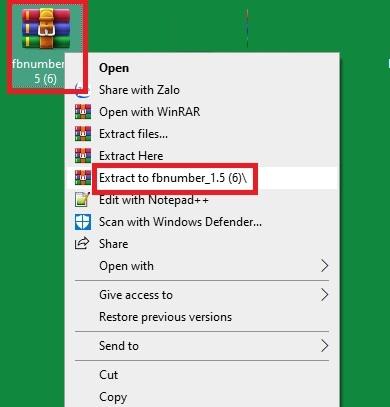
Step 2: Right-click the fbnumber file you just downloaded and choose extract — you'll then see a fbnumber_15.x folder
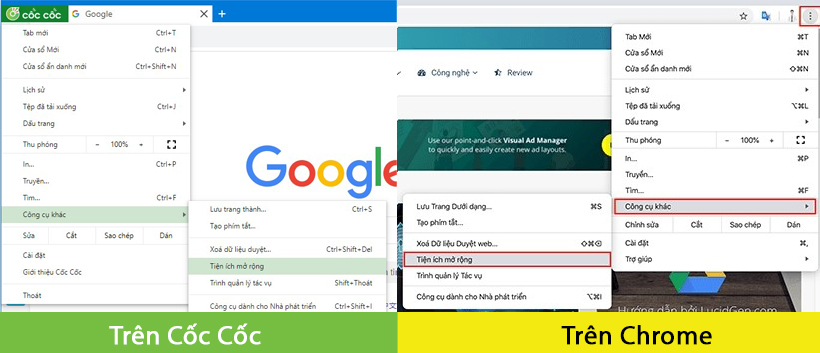
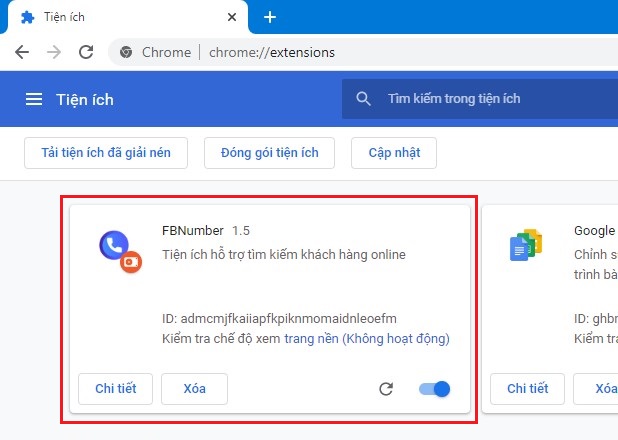
Step 3: In Chrome, click the Menu button at the top right and choose Extensions > Manage Extensions. Or jump straight there with chrome://extensions to open Chrome's extension management page.

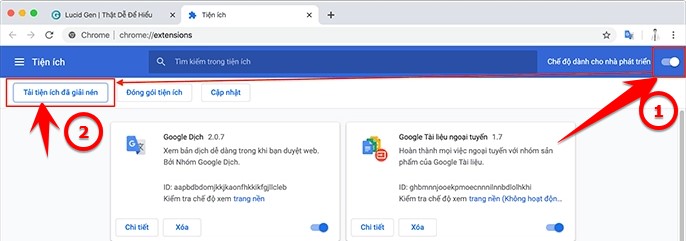
Turn on Developer mode in the top right corner. Click Load unpacked.
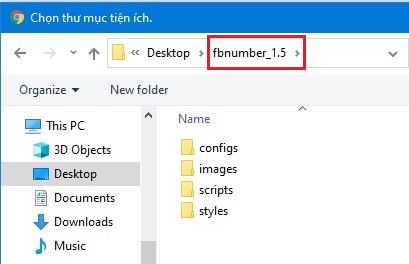
Point it at the fbnumber_15.x folder you extracted in Step 2
If you see the FBNumber extension icon appear, it loaded successfully.
HOW TO USE THE FACEBOOK PHONE NUMBER FINDER
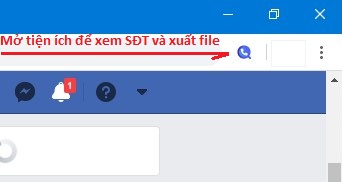
Once the FBnumber extension is installed, you'll see a small icon in the top right of your browser. Click sign in with Google to create an account.
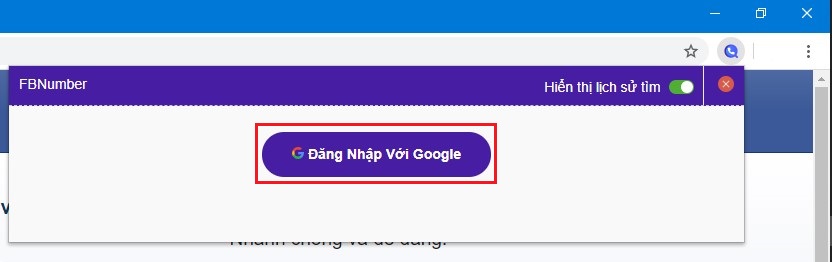
You can sign in with any Gmail address — this lets you register an FBnumber account quickly without filling in much information.
Now go to the profile of the person whose phone number you want to see on Facebook. There are several places where a Facebook phone number scan button appears, as below:
- Find a Facebook number in the cover photo area.
- Scan numbers across the whole customer-name area on a post.
- Get a number from the chat box with a customer.
When you click Find Number, the phone number of the person you want will be displayed. At the same time you'll get a "number scanned successfully" notification, as in the image below.
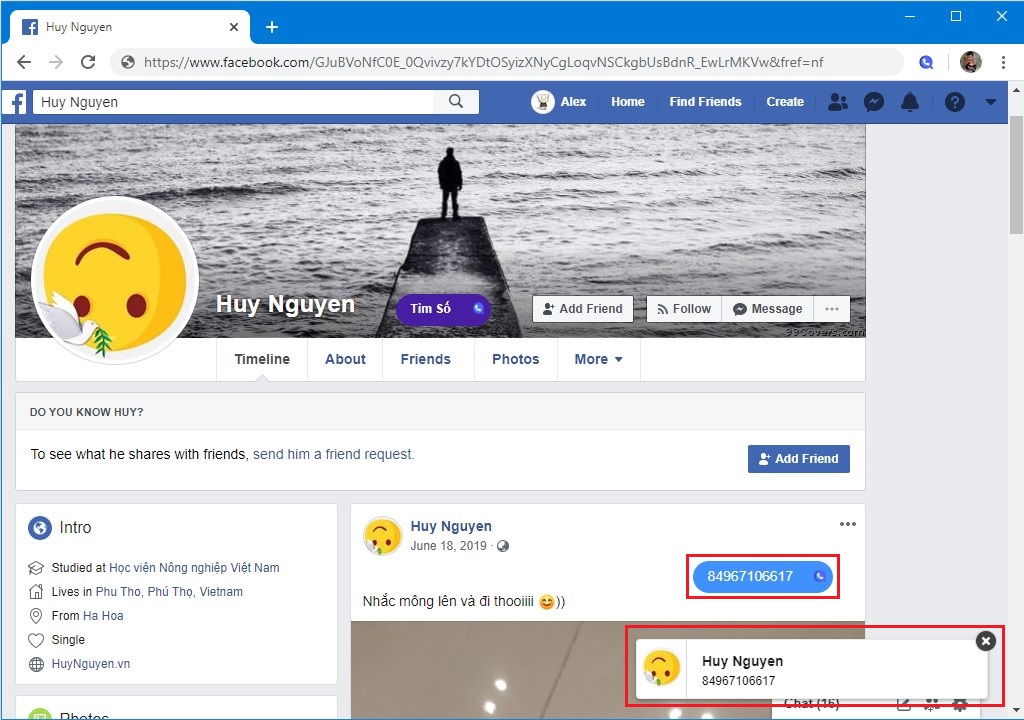
For posts in Groups or on Fanpages, just hover over the comment area and a Find Number button will appear. One click on Find Number and the account holder's phone number shows up immediately.
A powerful feature of FBnumber is that it can scan every phone number of the people who commented on a Facebook post. To do this, click to expand all of the comments, then click the Scan all comments button and click OK on the prompt — the system scans automatically.
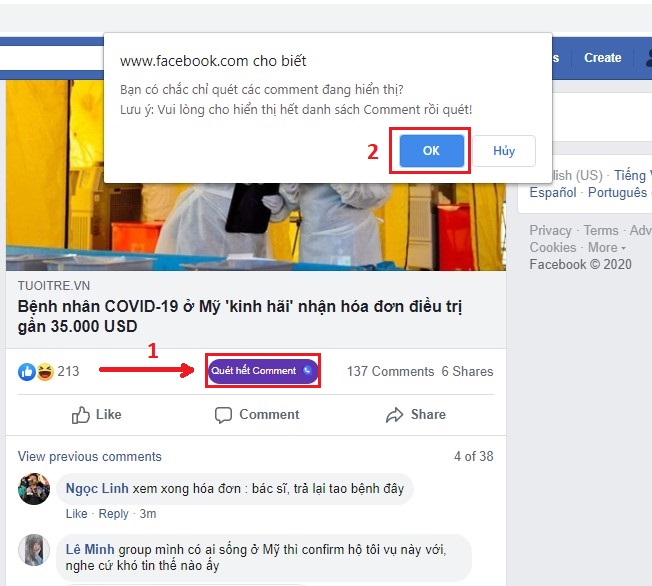
Once the scan finishes, the Scan all comments button turns into Done! and a "phone numbers scanned successfully" notification appears in the corner of the screen. Now just click the extension icon above to view your Facebook phone number scan history and export an Excel file if you need one.
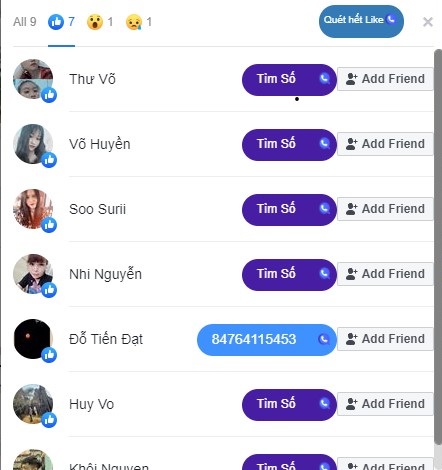
To scan the Facebook numbers of people who Liked a post, click the Like count on the post to open the window listing who Liked it. You can now click the find-number button next to a user's name to see their phone number. If you want to Scan all Likes, you'll need to scroll to the end of the list.
You get a free trial of 50 scanned numbers. Please support the team behind a tool this useful by chipping in for one of the small packages, so you can find more potential customer phone numbers .